
Windows Server SMB Shares and Access Permissions
An SMB share exposes a folder over the network. A successful user needs permission at both the share and NTFS layers; the more restrictive effective access applies. Use a dedicated test folder and an approved domain group rather than broad identities such as Everyone.
Choose a Test Path and Approved Group
Plan AccessOn a Windows Server file server, select a data volume with sufficient space and a documented backup plan. Replace the example group with a real group managed by your directory team. Confirm that the group contains only intended users.
$Path = 'D:\Shares\ProjectLab'$Share = 'ProjectLab$'$AccessGroup = 'CONTOSO\ProjectLab-Readers' # replace with approved groupTest-Path 'D:\'Get-SmbShare -Name $Share -ErrorAction SilentlyContinue❯ View Expected Console Output
TrueNo existing share with this name (expected in a new lab)Create the Folder and Set NTFS Access
File PermissionsUse a new, empty test directory. The sample grants the group read access at the NTFS layer and leaves existing ACL inheritance intact. Review inherited permissions; adding an ACL entry does not remove any permissions already inherited from a parent.
New-Item -ItemType Directory -Path $Path$Acl = Get-Acl $Path$Rule = New-Object System.Security.AccessControl.FileSystemAccessRule( $AccessGroup, 'ReadAndExecute', 'ContainerInherit,ObjectInherit', 'None', 'Allow')$Acl.AddAccessRule($Rule)Set-Acl -Path $Path -AclObject $AclGet-Acl $Path | Select-Object -ExpandProperty Access❯ View Expected Console Output
IdentityReference FileSystemRights AccessControlTypeCONTOSO\ProjectLab-Readers ReadAndExecute AllowPublish the Share with Read Access
Share PermissionsPublish the folder and grant the approved group read access at the SMB share layer. The built-in Administrators group retains administrative access. Share permissions and the NTFS ACL both apply to remote SMB access.
New-SmbShare -Name $Share -Path $Path `  -ReadAccess $AccessGroup `  -FullAccess 'BUILTIN\Administrators' `  -Description 'Temporary project access lab'
Get-SmbShare -Name $ShareGet-SmbShareAccess -Name $Share
❯ View Expected Console Output
Name Path Description---- ---- -----------ProjectLab$ D:\Shares\ProjectLab Temporary project access labTest from a Client and Review the Effective Result
VerifyFrom a domain-joined test client signed in as a member of the approved group, open the UNC path. Verify read access, and verify that writes are denied when the group is read-only. Troubleshoot DNS, firewall reachability, share ACLs, and NTFS ACLs separately.
Test-NetConnection files01.contoso.com -Port 445Get-ChildItem '\\files01.contoso.com\ProjectLab$'Get-SmbConnection | Select-Object ServerName, ShareName, UserName, Dialect❯ View Expected Console Output
ComputerName : files01.contoso.comRemotePort : 445TcpTestSucceeded : True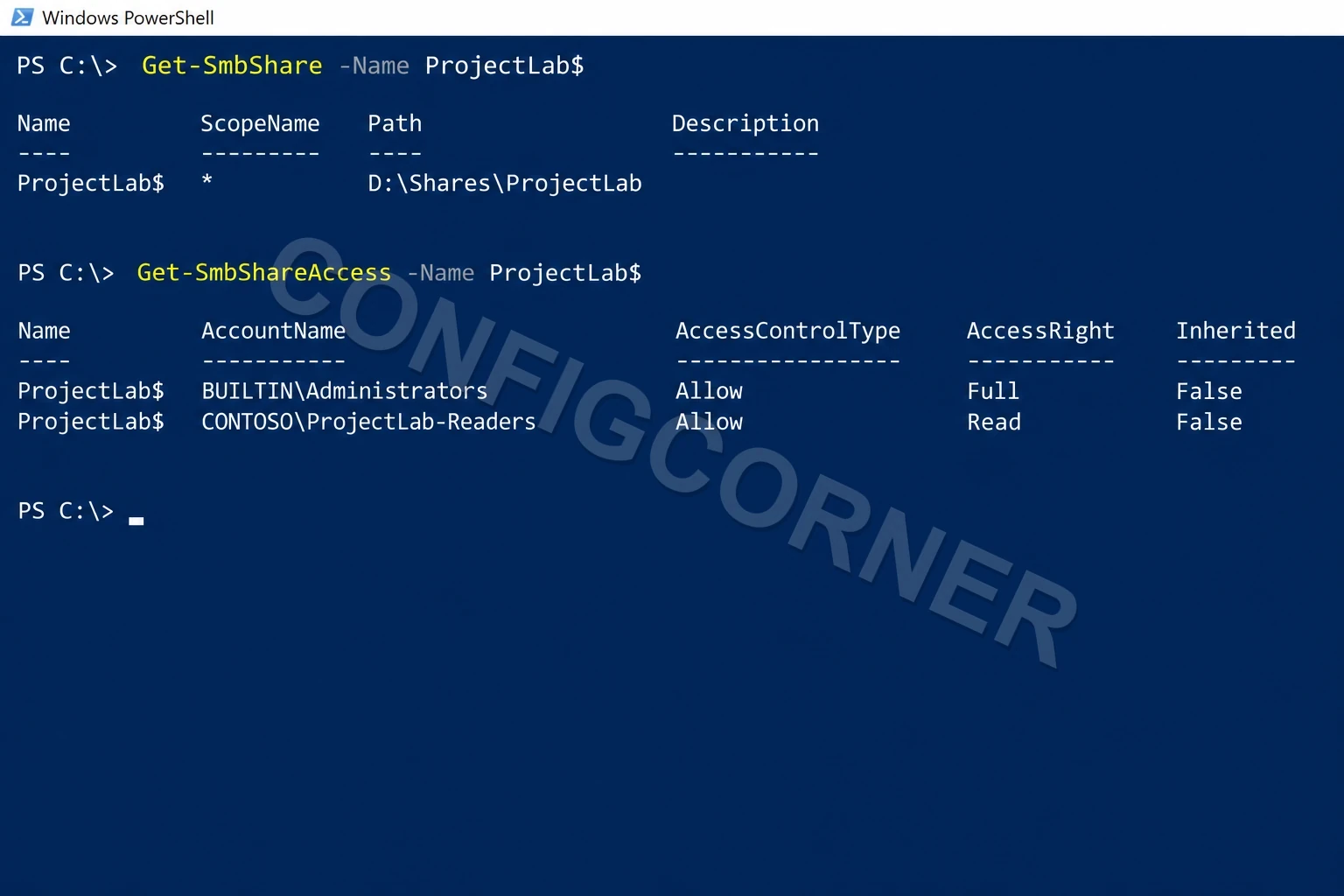
PowerShell: Confirm the share path and the separate share-level access entries.
Further reading: New-SmbShare cmdlet.