
Configure and Verify Linux Time with chrony
Accurate time supports log correlation, Kerberos, certificates, and scheduled jobs. chrony synchronizes the system clock with configured sources. In managed networks, use approved internal NTP sources; do not add public pools where policy requires an enterprise time hierarchy.
Check the Current Time Service
BaselineBefore installing anything, check whether chrony, systemd-timesyncd, or another time service is already active. Avoid running multiple competing clock synchronizers.
timedatectl statussystemctl is-active chronyd chrony systemd-timesyncd 2>/dev/null❯ View Expected Console Output
System clock synchronized: yesNTP service: activeInstall chrony for Your Distribution
Package SetupInstall the package with the system package manager. On Debian and Ubuntu the service is usually named chrony; Fedora and RHEL family systems typically use chronyd. If another time synchronizer is active, choose one service and follow the distribution’s procedure to disable the competing service.
# Debian or Ubuntusudo apt updatesudo apt install chronysudo systemctl enable --now chrony
# Fedora or RHEL familysudo dnf install chronysudo systemctl enable --now chronyd
❯ View Expected Console Output
Created symlink ... chrony.service (or chronyd.service)Set Approved Time Sources
Source PolicyInspect the existing configuration before editing. Debian/Ubuntu commonly use /etc/chrony/chrony.conf; Fedora/RHEL commonly use /etc/chrony.conf. Keep the distribution’s existing settings where appropriate, and replace the sample server name with an approved NTP source.
# Inspect existing sources/config before editing:grep -E '^(pool|server|sourcedir|makestep)' \  /etc/chrony/chrony.conf /etc/chrony.conf 2>/dev/null
# Example directive for an approved internal source:# server ntp01.example.net iburst
❯ View Expected Console Output
server ntp01.example.net iburstRestart chrony and Check Sources
VerificationRestart the correct service name after a reviewed config edit. Then use chrony’s client utility to see which sources are reachable and selected.
# Choose the service name for your distribution:sudo systemctl restart chrony       # Debian or Ubuntu# sudo systemctl restart chronyd    # Fedora or RHEL family
chronyc sources -vchronyc tracking
❯ View Expected Console Output
MS Name/IP address Stratum Poll Reach LastRx Last sample^* ntp01.example.net 3 6 377 25 -120us[ -180us] +/- 12msReference ID : ...Leap status : NormalCheck System Clock and Logs
TroubleshootingConfirm the system clock is synchronized and inspect service logs if sources are unreachable. Verify DNS resolution, routing, UDP/123 firewall policy, and the upstream server’s health.
timedatectl show -p NTPSynchronized -p TimeUSecsystemctl --no-pager --full status chrony 2>/dev/null || \ systemctl --no-pager --full status chronydjournalctl -u chrony -u chronyd --since '30 minutes ago' --no-pager❯ View Expected Console Output
NTPSynchronized=yesLeap status: Normal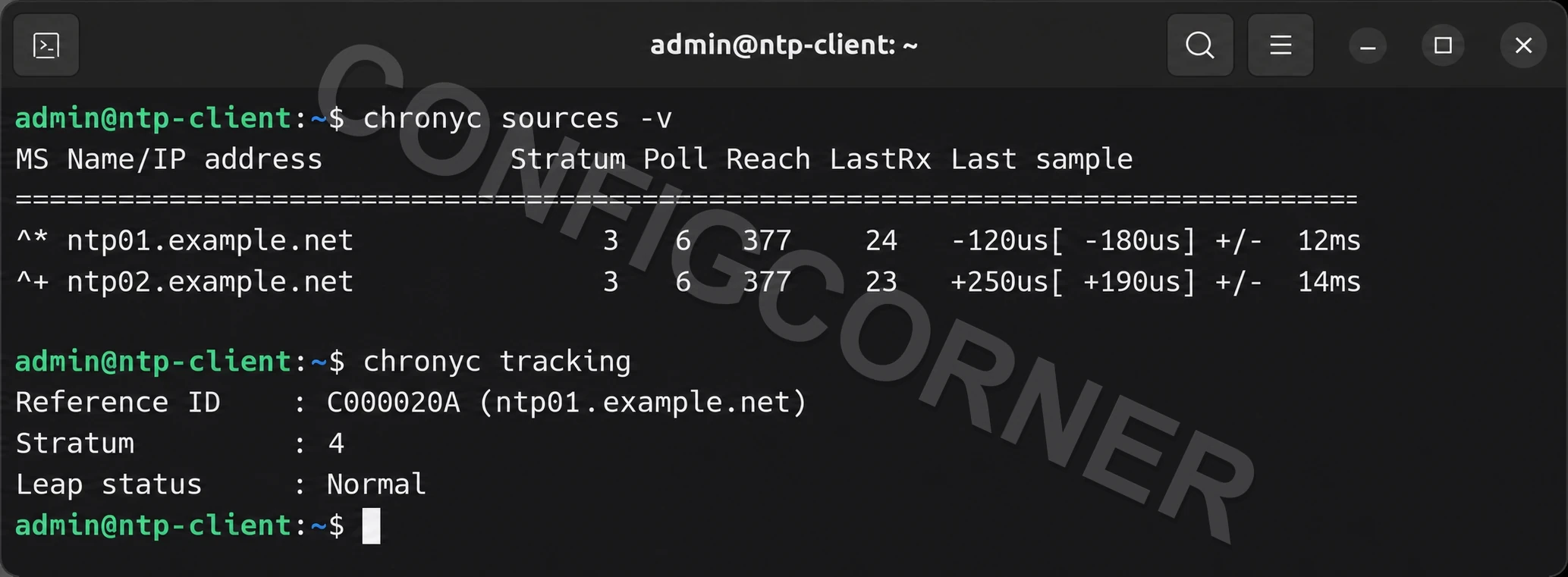
Terminal: Check the selected source, reachability, stratum, and leap status.
Further reading: chrony documentation.