
Linux Filesystems and Mounts for Beginners
Linux presents files through one directory tree that starts at /. A disk or network filesystem becomes available in that tree when it is mounted at a directory called a mount point. The drive-letter model used by Windows does not apply: /home, /var, and a removable disk can all be directories in the same tree while residing on different filesystems.
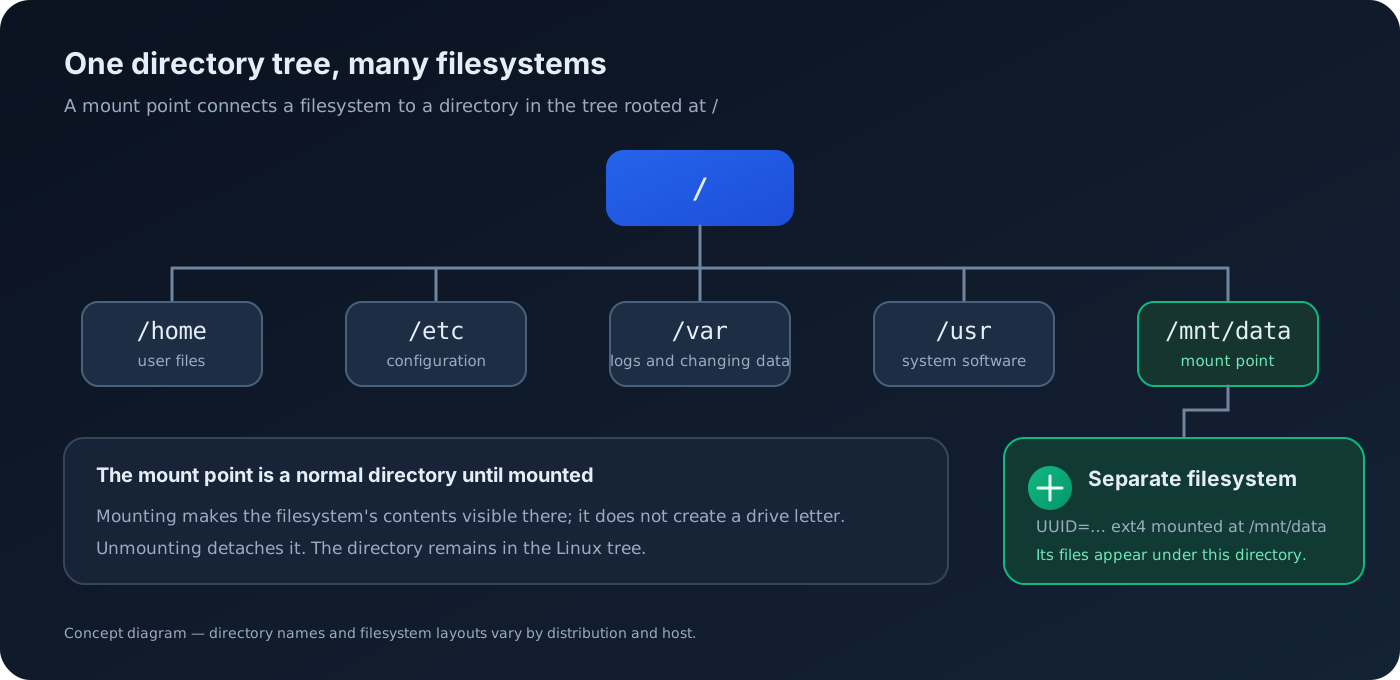
Linux filesystem view: a mounted filesystem appears at a directory in the single tree rooted at /.
Step 1: Recognize Common Directories
Read a Linux Path from the Root
Directory TreeA leading slash means the path starts at the filesystem root. These directories are common on Linux systems; exact contents can differ by distribution and installed software.
pwdls -lah /❯ View Expected Console Output
/ Top of the directory tree/home Users' home directories/etc System and service configuration/var Variable data such as logs and caches/tmp Temporary files/usr and /opt Installed operating-system and optional software/mnt and /media Common locations for mounted or removable filesystemsStep 2: Inspect Disks, Filesystems, and Free Space
Check Devices and Mounted Filesystems
Read-Only InventoryThese commands inspect storage. lsblk shows block devices and mount points, findmnt shows the mounted tree, and df reports filesystem capacity. A device such as /dev/sdb may contain more than one partition; do not guess which device to mount or format.
lsblk -o NAME,TYPE,SIZE,FSTYPE,LABEL,UUID,MOUNTPOINTSfindmntdf -hT❯ View Expected Console Output
NAME TYPE SIZE FSTYPE LABEL UUID MOUNTPOINTSvda disk 40G├─vda1 part 1G vfat 7A1B-2C3D /boot/efi└─vda2 part 39G ext4 9b6c... /Filesystem Type Size Used Avail Use% Mounted on/dev/vda2 ext4 39G 12G 25G 33% /Step 3: See Which Filesystem Contains a Path
Check Space for a Directory or File
Capacityfindmnt —target identifies the mount that contains a path. df -hT shows its filesystem capacity; du -sh estimates how much space a directory’s contents use. du may take time on large trees and access to some files may be denied.
findmnt --target "$HOME"df -hT "$HOME"du -sh "$HOME"❯ View Expected Console Output
TARGET SOURCE FSTYPE OPTIONS/home /dev/vda2 ext4 rw,relatimeFilesystem Type Size Used Avail Use% Mounted on/dev/vda2 ext4 39G 12G 25G 33% /3.4G /home/samStep 4: Understand a Mount Point
Find a Device by Its UUID Before Mounting
MountingA mount point is an existing directory where the root of another filesystem becomes visible. First identify the intended filesystem and its UUID with lsblk; compare the size, label, filesystem type, and UUID with your change plan. Never use an example device name blindly.
lsblk -f
# Replace the placeholder with the UUID you confirmed from lsblk.sudo mkdir -p /mnt/datasudo mount UUID=REPLACE-WITH-CONFIRMED-UUID /mnt/datafindmnt --target /mnt/data
❯ View Expected Console Output
TARGET SOURCE FSTYPE OPTIONS/mnt/data /dev/disk/by-uuid/confirmed-filesystem-id ext4 rw,relatimeStep 5: Unmount and Plan Persistent Mounts Carefully
Unmount Only After Checking for Active Use
Change SafetyBefore unmounting, leave the mount point and close programs using files on it. Check it with findmnt; if umount says the filesystem is busy, identify the users instead of forcing it. Entries in /etc/fstab configure filesystems to be mounted later, including at boot, so mistakes can affect startup.
cd /findmnt --target /mnt/datasudo umount /mnt/datafindmnt --target /mnt/data❯ View Expected Console Output
After unmounting, findmnt --target /mnt/data reports the parent filesystem,because /mnt/data is now an ordinary directory again.